Your CRM Just Learned to Talk: What Happens When You Connect Claude to Zoho CRM
The short answer: Connecting Claude to Zoho CRM lets you search, update, and analyze your CRM data by asking questions in plain English. Zoho's official MCP (Model Context Protocol) connector links your Zoho CRM account to Claude, the AI assistant made by Anthropic, at no extra cost from Zoho. Small businesses use it to find stalled deals, log sales calls, prepare for meetings, clean up data, and answer reporting questions in seconds instead of hours.
Why do small businesses struggle to get value from their CRM?
Here's a pattern I've seen across hundreds of software implementations: a company buys a CRM, spends weeks setting it up, trains the team, and six months later it has become the most expensive address book in the building.The data goes in. The insight rarely comes out.It isn't because Zoho CRM lacks the features. It's because getting answers out of any CRM takes time most small teams don't have. You have to know which module to open, which filters to set, which report to build, and which view someone saved three months ago. So the owner asks the sales lead, the sales lead exports a spreadsheet, and by the time the answer arrives, the moment to act on it has passed.Connecting Claude to Zoho CRM changes that equation. Instead of navigating your CRM, you talk to it. And for a business with fewer than 50 people, where nobody has "CRM administrator" as their full-time job, that shift is a big deal.
What does connecting Claude to Zoho CRM actually mean?
Claude is Anthropic's AI assistant. On its own, it's a strong writer and analyst, but it knows nothing about your customers. A connector changes that. Using an open standard called the Model Context Protocol (MCP), Zoho now offers an official way to plug your CRM directly into Claude, so Claude can read and work with your live CRM data from inside a normal conversation.In practical terms, once connected Claude can:
- Discover your setup: see which modules you use (Leads, Contacts, Accounts, Deals, Tasks, custom modules) and which fields live in each, including your custom ones.
- Read records: pull and filter records, and follow relationships, such as all the open Deals tied to one Account.
- Create records: add new Leads, Contacts, Tasks, or notes from a plain-English request.
- Update records: change stages, owners, dates, or fields across one record or many.
No exports. No copy-and-paste between tabs. No custom report you'll use once and forget. You ask a question in plain English, Claude goes to the CRM, and you get the answer, or the finished action, back in the chat.The real unlock is that Claude doesn't just fetch data. It reasons about it. It can spot the deal that's been quiet for three weeks, draft the follow-up email, and log the task to send it, all in one exchange.
What can Claude do with Zoho CRM? Six examples
1. Find the deals that are quietly slipping away
Every pipeline has deals that went cold without anyone noticing. Normally, finding them means building a report with filters on amount, stage, and last activity date. With Claude, you just ask.
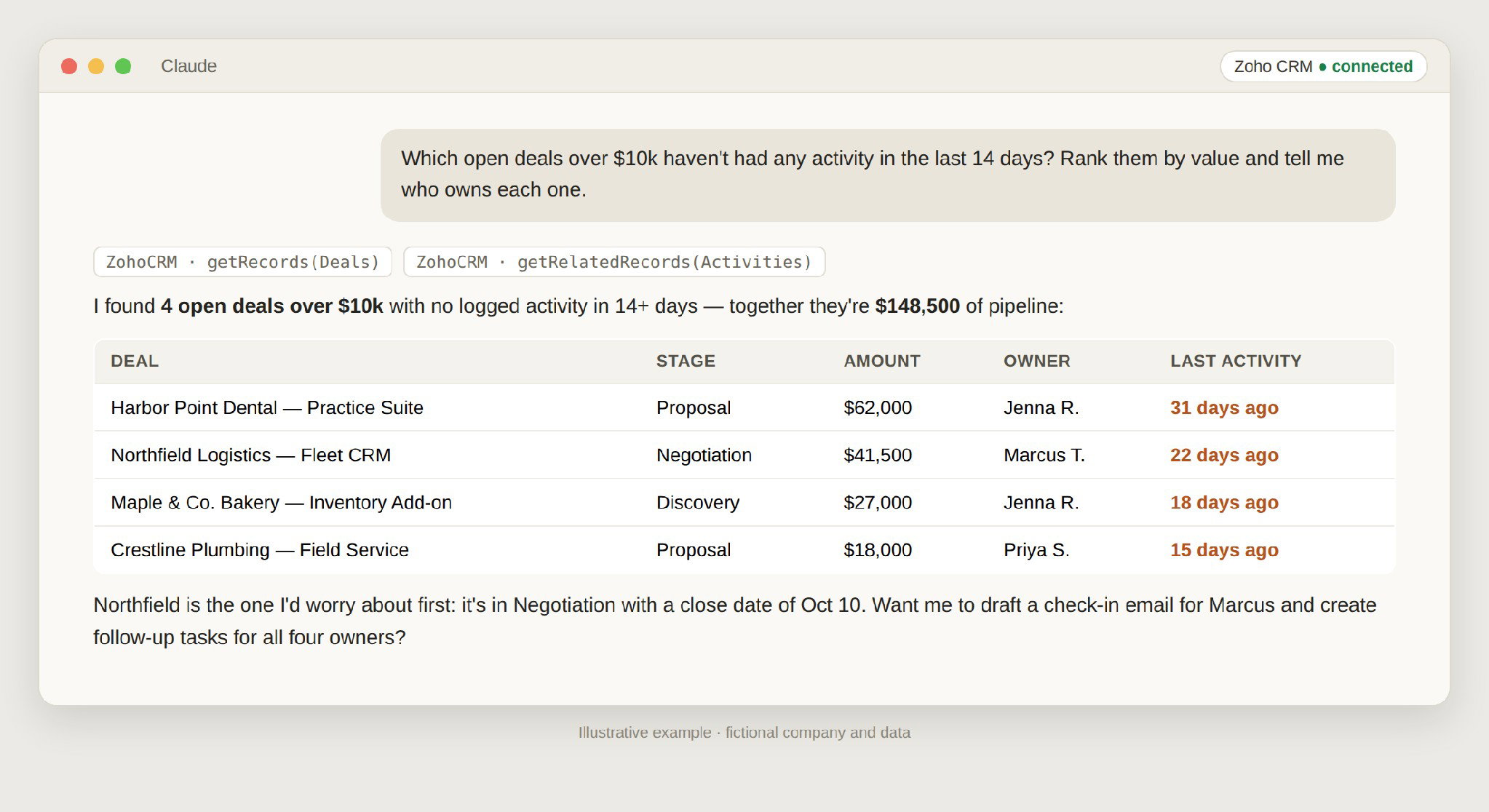
What's happening here (illustrative example, fictional data): The owner asks which open deals over $10,000 have had no activity in the last 14 days. Claude checks the Deals module and each deal's related activities, returns four stalled deals worth $148,500 in total, ranks them by value with each owner's name, and recommends starting with the deal in Negotiation that closes soonest.Notice what happened: Claude didn't just return a list. It totaled the at-risk pipeline, flagged the most urgent deal based on its stage and close date, and offered the next step. That's the difference between a report and an advisor.
2. Turn a phone call into a clean CRM update in 30 seconds
The number-one reason CRM data goes stale is that updating it feels like homework. Reps finish a great call, jump to the next one, and the notes live in their head (or a sticky note) forever.With Claude connected, you describe the call the way you'd tell a colleague, and Claude translates it into the right field changes, a logged note, and follow-up tasks.
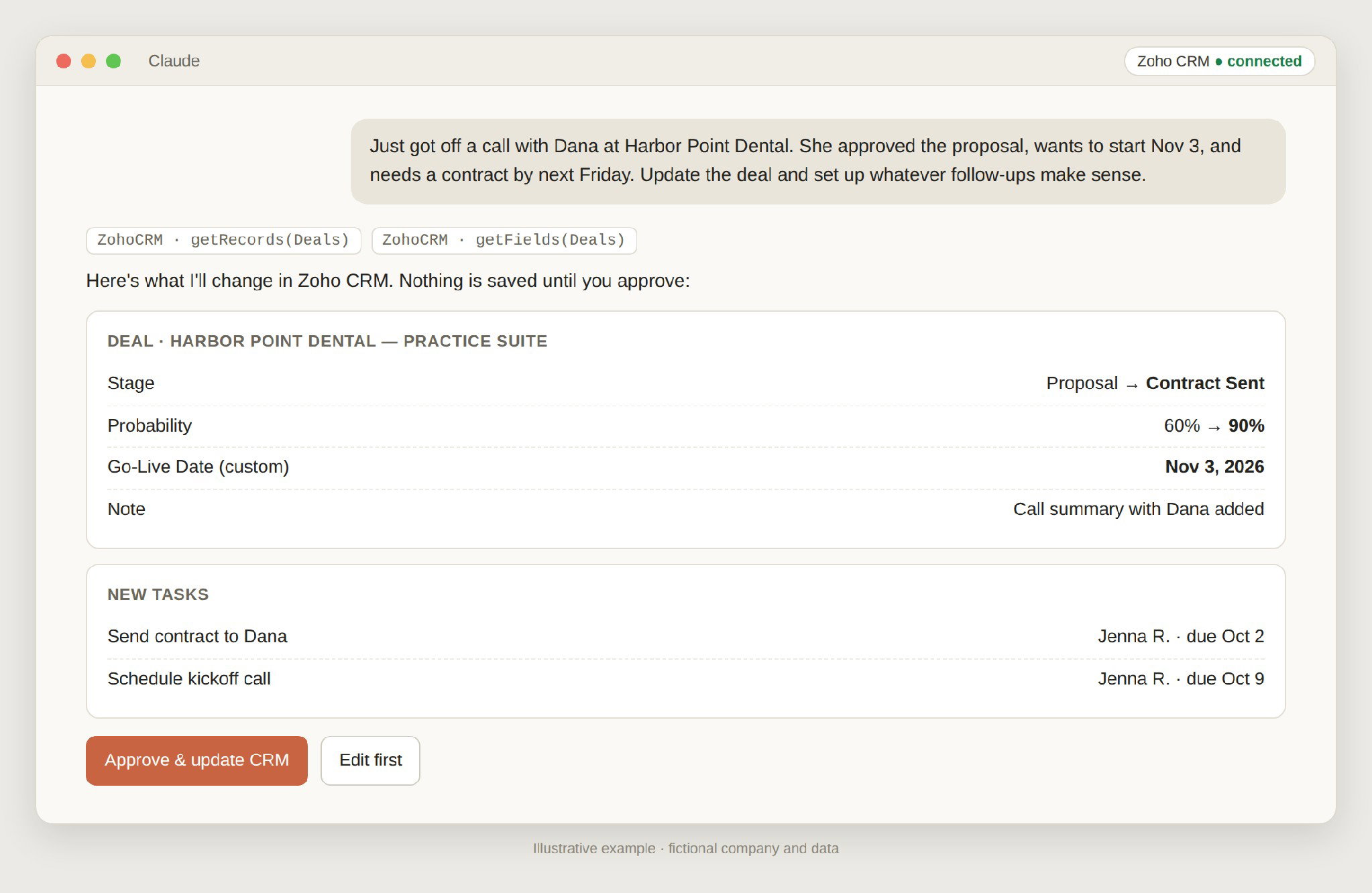
What's happening here (illustrative example, fictional data): A rep summarizes a sales call in two sentences. Claude finds the matching deal and proposes moving the stage from Proposal to Contract Sent, raising the probability from 60% to 90%, filling in a custom Go-Live Date field, logging a call note, and creating two dated follow-up tasks. Nothing is saved to Zoho CRM until the rep approves.Two details matter here. First, Claude read the Deals module's field list, so it found the company's custom "Go-Live Date" field on its own. Second, it showed exactly what would change and waited for approval before writing anything.
3. Walk into every meeting prepared
Five minutes before a call is not the time to click through an Account, its Contacts, three open Deals, and a year of notes. Ask Claude for a brief, and it pulls the related records together and tells you what actually matters.
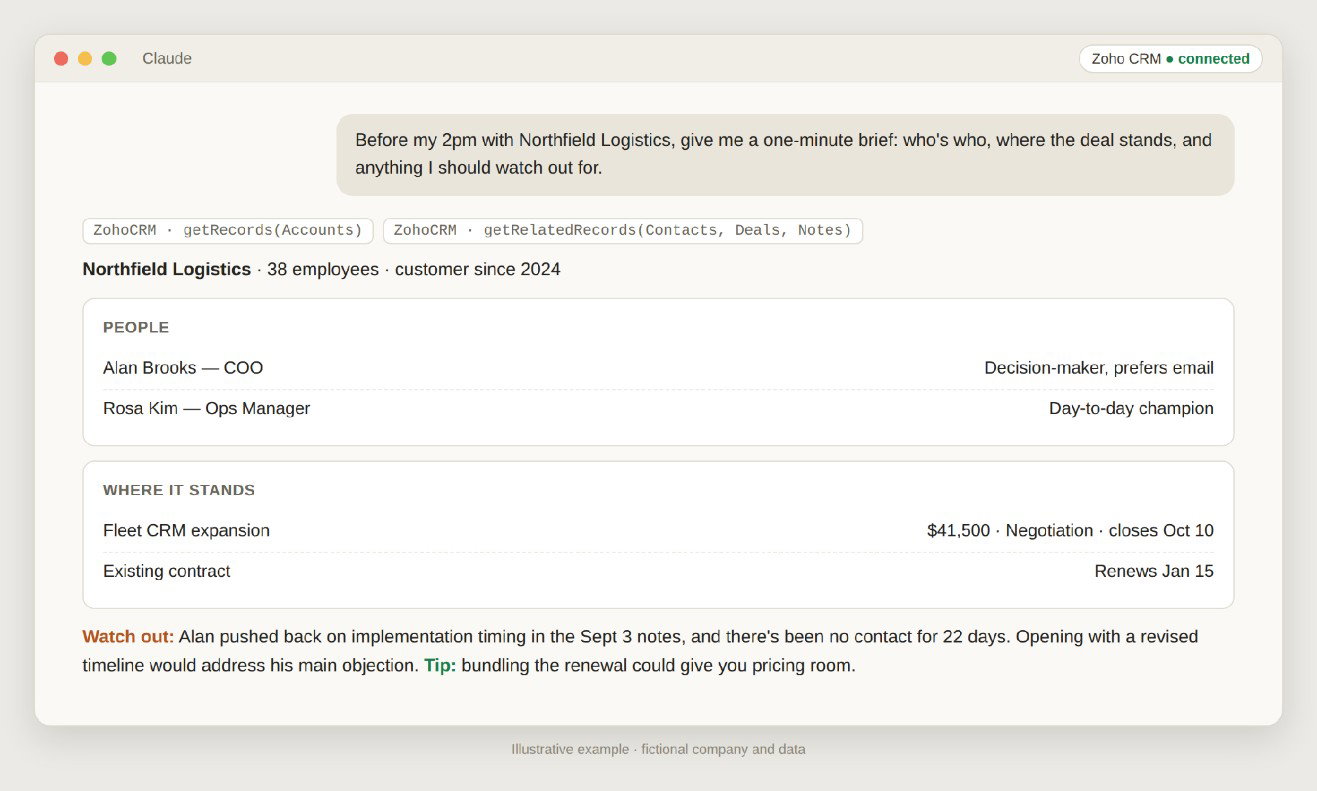
What's happening here (illustrative example, fictional data): Before a 2 p.m. call, the user asks for a quick brief. Claude pulls the Account, its Contacts, open Deals, and past Notes, then summarizes who the decision-maker and day-to-day champion are, where the $41,500 deal stands, when the existing contract renews, and one risk to address: the decision-maker's earlier concern about implementation timing.
4. Clean up your data without a weekend project
Duplicate leads, missing phone numbers, contacts with no account, deals with close dates in the past: every CRM collects clutter. Ask Claude to find the problems ("show me leads created this quarter with no email or phone" or "which open deals have a close date that already passed?"), review the list, then have it fix them in bulk, with your approval.
5. Get answers the dashboard doesn't have
Dashboards answer the questions someone anticipated. Real business questions are messier: "Which lead sources produced our biggest deals this year?" "How many deals did we lose in Negotiation, and do they have anything in common?" "Which accounts haven't bought anything in 12 months?" Claude can pull the records, do the math, and explain the pattern in plain English, no report builder required.
6. Capture new business the moment it shows up
A business card from a networking event, a referral forwarded by a client, a list of attendees from a trade show: tell Claude who they are and it will create the Leads or Contacts, link them to the right Account, assign an owner, and set a follow-up task. What used to be a Monday-morning data-entry chore takes one message.
Is it safe to connect AI to your CRM?
It's the right question, and after 25 years of implementations, my answer is: yes, with the same discipline you'd apply to a new hire.
- Grant only the permissions you need. Zoho's MCP setup lets you choose which tools are enabled. Start with read and create. Most businesses should leave delete switched off entirely.
- Keep approvals on for changes. Let Claude read freely, but review writes before they land, especially bulk updates. The preview-then-approve pattern in the screenshot above should be your default.
- Clean data makes smarter answers. Claude reasons over what's in your CRM. If stages are used inconsistently or half your deals have no close date, fix that first (and Claude can help you find the gaps).
- Mind the volume. Claude is excellent at answering targeted questions across hundreds of records. For analysis across tens of thousands of records, a proper report or export is still the better tool.
- Get admin sign-off. Connecting a business system to any AI tool should be a deliberate company decision, not something one rep sets up on their own.
How do you connect Claude to Zoho CRM?
The technical setup takes about 10 minutes and requires no coding. Zoho's MCP connection is included at no additional cost for Zoho users. Here's how it works:
- Choose a Zoho CRM MCP server. Zoho offers ready-made CRM servers for data insights, data operations, module customization, and workflow automation. You can also build a custom server in the Zoho MCP console and pick exactly which tools (read, create, update, delete) to enable.
- Copy the server URL that Zoho provides.
- Add it to Claude as a custom connector. In Claude, open Customize, then Connectors, add a custom connector, give it a name, and paste the URL.
- Click Connect and sign in to Zoho to authorize your CRM organization.
- Test it with a read-only question, such as "How many open deals do we have in the Proposal stage?"
For the latest screens and server options, see Zoho's official Claude setup guide.The part that takes thought is everything around the setup: which permissions to grant, which workflows to start with, how to get your team to actually use it, and whether your CRM data is clean enough for Claude to give you great answers.
That's where we come in. At DJS Digital, we've spent 25+ years and 450+ implementations helping small businesses get real value from their CRM and ERP systems. We can connect Claude to your Zoho CRM, configure it safely, and train your team on the prompts that save the most time.
Ready to make your CRM talk back? Book a free 30-minute consultation →
Frequently asked questions
Does connecting Claude to Zoho CRM cost extra?
Not on the Zoho side. Zoho states that its MCP connection is included at no additional cost for Zoho users. It runs within the API limits of your existing Zoho CRM edition. You do need a Claude account, and connector features depend on your Claude plan, so check Anthropic's current plan details.
Which Zoho CRM edition do I need?
Zoho doesn't list a required edition for MCP, but every Claude request counts against your Zoho CRM API limits, which vary by edition. Teams that plan heavy daily use should confirm their edition's API allowance first.
Is my CRM data safe with Claude?
You control access. You authorize the connection with your own Zoho sign-in, choose which tools are enabled, and can require approval before any change is written. For most small businesses, the safest setup is to enable read and create, require approval for updates, and leave delete switched off. Review both Zoho's and Anthropic's privacy terms, and get sign-off from whoever owns your CRM.
Can Claude delete records in Zoho CRM?
Only if you enable the delete tool when setting up the Zoho MCP server. We recommend leaving it off.
Do I need technical skills to set it up?
No. The setup is copy, paste, and sign in. The part that benefits from experience is deciding which permissions to grant, which workflows to start with, and whether your CRM data is clean enough to trust the answers.
What are the limitations?
Claude works best on targeted questions across hundreds of records. For analysis across tens of thousands of records, a Zoho report or export is still more reliable. Answers are only as good as your CRM data, so double-check numbers before making major decisions.
Does it work with other Zoho apps?
Yes. Zoho MCP also connects other Zoho apps, such as Zoho Books, Zoho Desk, and Zoho Projects, so one request can span sales, finance, and support data.
About the author
David Singletary is the founder and CEO of DJS Digital, LLC, an independent technology consulting firm in the New Jersey and New York City area. DJS Digital helps small businesses (under 50 employees) select and implement ERP and CRM software. David has 25+ years of experience and 450+ implementations across ERP, CRM, AP automation, inventory management, and compliance platforms.
Last updated: September 25, 2026